
The short answer. Most KDP paperback rejections come from a handful of fixable file problems:
- the page size doesn't match the trim size (or the bleed setting)
- content sits outside the margins, often because the gutter is too small for the page count
- fonts aren't embedded, or images are below 300 DPI
- the file is in spreads instead of single pages
- the title, author or ISBN in the file doesn't match your KDP setup
- the cover is the wrong size for your page count and paper
Find your error below. Each section explains why KDP flags it, how to check your file, and how to fix it.
First: where the error came from
KDP checks your book twice:
- Print Previewer, the moment you upload. It reads the file's structure, so it can catch problems you can't see on the page, such as an invisible character past the margin. It may also scale or reflow content.
- Manual review, after you click Publish. A person checks your interior and cover against KDP's guidelines and emails you if something needs changing.
Previewer errors stop you submitting. Review emails arrive later, usually about content details such as mismatched metadata or spine text. Both are covered below.
Interior file errors
1. Incorrect trim size
- Why KDP flags it
- Your PDF page size must equal the trim size you chose in KDP, or the trim size plus bleed. A 6 × 9 book uploaded as a US Letter (8.5 × 11 in) PDF is rejected or scaled.
- How to check
- In Adobe Acrobat or a free PDF reader, open Document Properties and look at Page Size. In Word, check Layout → Size. Compare it with the trim size on your KDP Paperback Content page.
- How to fix it
- Change the page size in your source file (Word, InDesign, Affinity, etc.), then re-flow and re-check the layout before exporting. Don't resize the finished PDF; scaling distorts fonts and margins.
- When professional help is worth it
- If changing the page size breaks your layout, with images jumping and chapters starting on the wrong page, it is often quicker to have the interior rebuilt at the correct size.
2. Bleed set up wrongly
- Why KDP flags it
- If any page has art meant to reach the edge, KDP needs 0.125 in (3.2 mm) of bleed on the top, bottom and outside edges, and the whole file must be bleed-sized. A 6 × 9 bleed file must be 6.125 × 9.25 in.
- How to check
- Check whether you selected Bleed or No Bleed in KDP's interior settings, and that it matches your PDF page size. Look for images that stop just short of the page edge.
- How to fix it
- Set the document to trim width + 0.125 in and trim height + 0.25 in. Extend edge-to-edge images 0.125 in past the trim. If nothing truly needs to bleed, switch to No Bleed and pull images inside the margins.
3. Content outside the margins (gutter too small)
- Why KDP flags it
- KDP requires a minimum inside margin that grows with page count, plus at least 0.25 in on the outside, top and bottom (0.375 in with bleed). Text, page numbers or images beyond these are flagged.
- How to check
- Previewer highlights the problem pages. Check your gutter against your final page count in the table below.
- How to fix it
- Increase the inside margin to at least the value for your page count and make sure margins are mirrored. Watch for invisible characters, italic overhang and text boxes that extend past the margin; KDP specifically names these as triggers.
- When professional help is worth it
- Long books where a bigger gutter pushes chapters onto new pages often need the whole book re-flowed and re-checked, not just one setting changed.
| Page count | Minimum inside margin |
|---|---|
| 24–150 | 0.375 in (9.6 mm) |
| 151–300 | 0.5 in (12.7 mm) |
| 301–500 | 0.625 in (15.9 mm) |
| 501–700 | 0.75 in (19.1 mm) |
| 701–828 | 0.875 in (22.3 mm) |
Our 6×9 margins, gutter and bleed guide has a worked example and a diagram.
4. Fonts not embedded
- Why KDP flags it
- KDP needs every font fully embedded so the book prints exactly as designed. Fonts whose license doesn't allow embedding can't be embedded at all.
- How to check
- In Acrobat: File → Properties → Fonts. Every font should say Embedded or Embedded Subset.
- How to fix it
- Export with a print preset such as PDF/X-1a, which KDP lists as preferred and which embeds fonts. In Word, use a high-quality PDF export rather than “Print to PDF”. Replace any font whose license blocks embedding.
5. Low-resolution images
- Why KDP flags it
- KDP asks for at least 300 DPI for all images, interior and cover (600 DPI for manga and comics). Lower resolutions look acceptable on screen and soft or jagged in print.
- How to check
- Check each image's effective resolution at its printed size. In InDesign, the Links panel shows Effective PPI. A 1200-pixel-wide image printed 6 in wide is only 200 DPI.
- How to fix it
- Replace the image with a larger original, or print it smaller. Upscaling a small image in software doesn't add real detail. Also turn off image downsampling when exporting; KDP asks for this.
- When professional help is worth it
- Image-heavy books such as cookbooks and illustrated guides need extra attention to resolution, placement and bleed across every spread.
6. Spreads instead of single pages
- Why KDP flags it
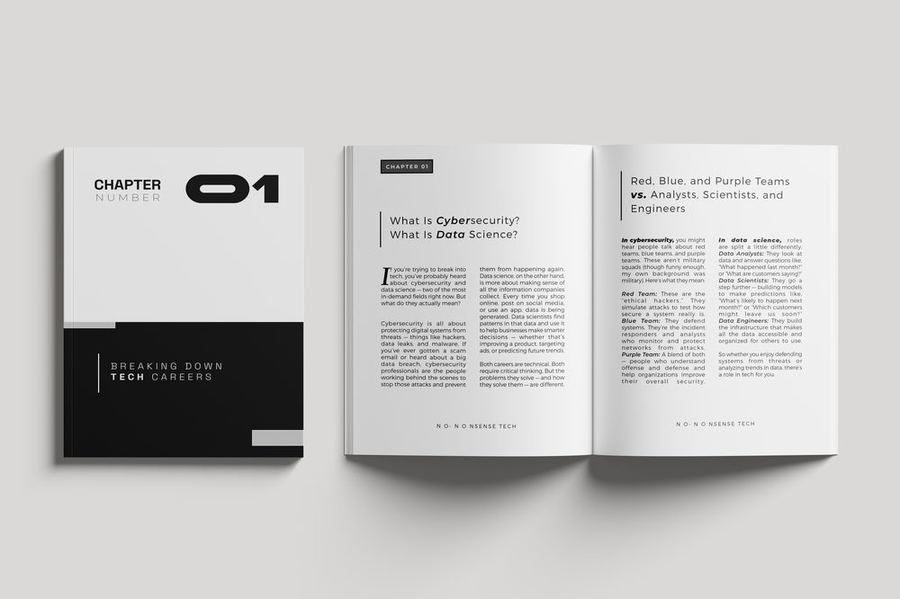
- KDP requires single-page files, not spreads or 2-up layouts. A spread PDF has pages twice as wide as the trim size.
- How to check
- Open the PDF: if facing pages appear side by side as one page, it is a spread file.
- How to fix it
- Re-export with Pages selected instead of Spreads (InDesign) or the equivalent setting in your software.
7. Blank pages and pagination
- Why KDP flags it
- KDP allows no more than 4 consecutive blank pages at the beginning or middle of the book, and no more than 10 at the end. Page numbers must be sequential, with odd numbers on right-hand pages for left-to-right languages.
- How to check
- Scroll the Previewer for runs of blank pages, and check that page 1 of the main text is a right-hand page.
- How to fix it
- Remove extra blank pages. Use section breaks to start chapters on right-hand pages instead of inserting several empty pages.
8. Book details don't match the file
- Why KDP flags it
- Title, subtitle, author name, edition, language and ISBN in your files must match your KDP title setup exactly. This is one of the most common manual-review emails.
- How to check
- Compare your title page, copyright page, running headers, spine and back cover against the KDP Details page, character by character.
- How to fix it
- Correct whichever side is wrong. A pen name, subtitle or edition number is the usual culprit.
9. Other interior checks KDP names
- Why KDP flags it
- KDP's guidelines also require text of at least 7 pt, lines of at least 0.75 pt, gray fills of at least 10%, flattened transparencies, no crop marks or comments, no placeholder template text, and files no larger than 650 MB.
- How to check
- Flick through the Previewer at full size, especially tables, footnotes and decorative rules.
- How to fix it
- Flatten transparency and remove printer's marks at export. Replace any leftover template text.
Cover errors
10. Wrong cover dimensions
- Why KDP flags it
- The cover is one PDF: back cover + spine + front cover, plus 0.125 in bleed on every side. Spine width depends on your page count and paper, so a cover made for 280 pages won't fit at 312 pages.
- How to check
- Recalculate: cover width = 0.125 + trim width + spine width + trim width + 0.125 in. Cover height = 0.125 + trim height + 0.125 in.
- How to fix it
- Rebuild the cover on KDP's cover template for your exact final page count and paper type. Re-check the cover whenever the page count changes.
- When professional help is worth it
- If your interior page count changed after the cover was designed, the cover designer needs the new count to resize the spine and back cover.
| Paper | Spine width per page |
|---|---|
| White | 0.002252 in (0.0572 mm) |
| Cream | 0.0025 in (0.0635 mm) |
| Groundwood | 0.00235 in (0.0596 mm) |
| Color | 0.002347 in (0.0596 mm) |
Example: a 6 × 9 in book with 300 pages on white paper has a spine of 300 × 0.002252 = 0.6756 in, so the full cover is 12.9256 × 9.25 in.
11. Spine text problems
- Why KDP flags it
- KDP only prints spine text on books with more than 79 pages, and spine text needs at least 0.0625 in (1.6 mm) clearance on each side.
- How to check
- Check your final page count and how close spine text sits to the fold lines.
- How to fix it
- Under the threshold, remove spine text. Otherwise reduce its size so it clears both folds by at least 0.0625 in.
KDP’s help pages word this threshold slightly differently in different places ("more than 79 pages" and "at least 79 pages"). To be safe, plan spine text only for books of 80 pages or more.
12. Elements outside the cover safe area
- Why KDP flags it
- Text or logos too close to the edge may be trimmed. KDP asks for important content at least 0.25 in (6.4 mm) from the outside cover edges, and places a barcode on the back cover if you don't provide one.
- How to check
- View the cover with KDP's template guides on. Check the back-cover blurb, author photo and the barcode area.
- How to fix it
- Move text inside the safe area and keep the barcode area clear. Make sure background art extends fully into the bleed.
Before you upload again
- PDF page size = trim size (or trim + bleed).
- Bleed setting in KDP matches the PDF.
- Gutter right for the final page count; margins mirrored.
- All fonts embedded; images at least 300 DPI; downsampling off.
- Single pages, not spreads; no crop marks.
- No more than 4 consecutive blank pages (10 at the end).
- Title, author, ISBN and edition match KDP exactly.
- Cover rebuilt for the final page count and paper.
- Spine text only if the page count allows it.
Selling on IngramSpark as well? A file KDP accepts may still need changes there. See KDP vs IngramSpark formatting for the differences that matter.
Stuck in the rejection loop?
Send us your file and the KDP message. We fix the interior and cover so they match your setup, check them in the Previewer, and send back print-ready files.
Get Your Book Formatting Fixed See our book formatting portfolio · Read client reviewsOfficial sources
Checked in November 2026. Platforms update their requirements, so confirm against these pages before you upload.